 Marquo
Sign a paper document on iPhone without printing
Capture the paper pages with the camera in Marquo, or open a photo or screenshot of the document. Marquo turns them into PDF pages, finds the blank lines, and you sign and send a PDF without a printer.
iPhone, iOS 26 or later. 1 signed document a day free. Pro from $4.99 a week.
Short answer
Capture the pages
In Marquo choose the camera, hold the phone over each page and save the scan.
Fill the blanks
Tap Fill my details to place your name, address, phone and email on the lines Marquo found. Add anything else by tapping the page.
Sign
Place your signature and initials, and add the date.
Send
Export the signed PDF and share it by email or message.
Capture the pages with the camera
The camera in Marquo uses the document camera built into iOS: it finds the page edges and straightens each page. Lay the paper on a dark, flat surface in good light and capture every page in order. The pages open in the editor as one PDF.
Or start from a photo or screenshot
If someone sent you a picture of the form, open it from Photos or Files, or share it to Marquo from Messages or Mail. A screenshot of a document works the same way. We tested the share path in the iOS simulator on October 26, 2026: a photo shared from Photos opened straight in the Marquo editor.
| Source | What you get | Blanks found for you |
|---|---|---|
| Camera in Marquo | One PDF with every captured page | Yes, on lines and boxes |
| Photo of the page | A PDF page from the photo | Yes, on lines and boxes |
| Screenshot | A PDF page from the screenshot | Yes, on lines and boxes |
| Share from Mail or Messages | The attachment opened in Marquo | Yes, for photos and flat PDFs |
Source: Marquo 1.0 features and tests (automated tests of the Share extension and the blank finder), October 2026.
Fill the blank lines and sign
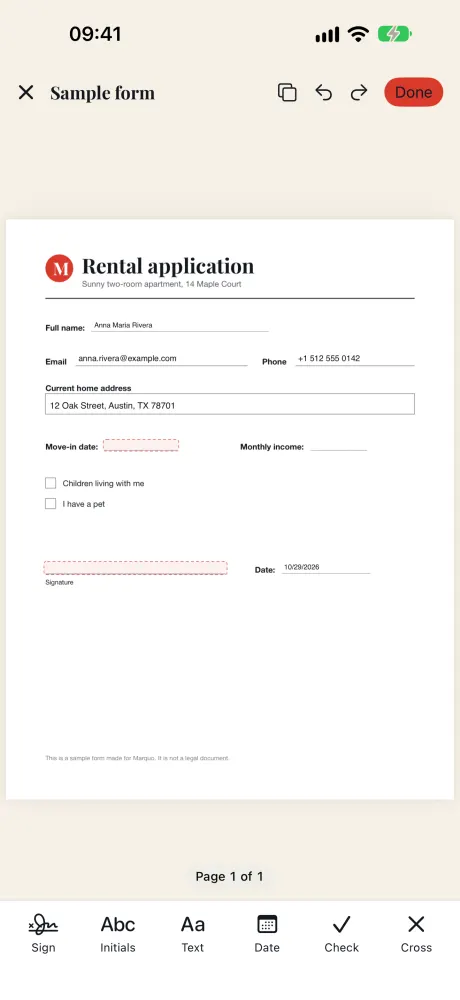
A captured page has no form fields, so Marquo looks for empty lines and boxes and reads their labels in English, Spanish or Russian. Found blanks are highlighted. Fill my details puts your saved details on them, and a line labeled Date gets today's date. Check every value, then add your signature and initials. More in How to fill out a PDF form on iPhone.
Fix page order and rotation
Open the page list to rotate a sideways page, delete a blurry one or add a page you missed. Do this before signing, so the signature sits on the right page in the final file.
Send the signed PDF
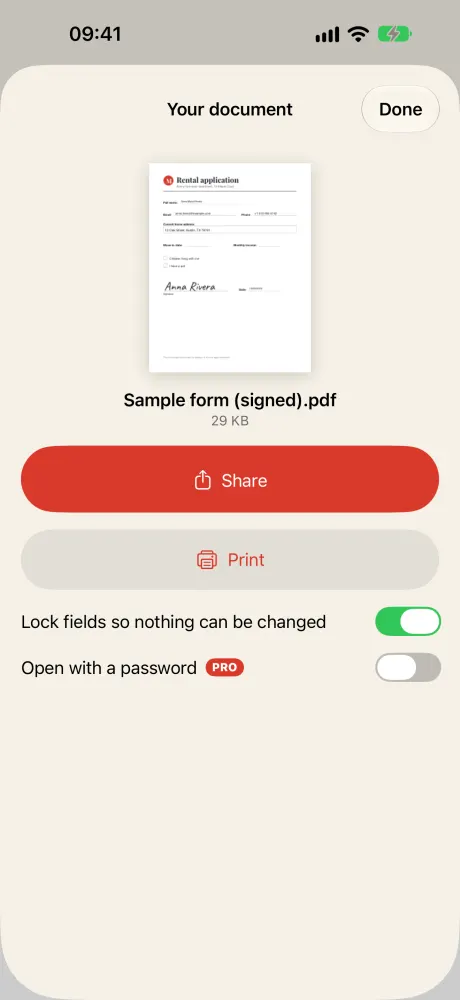
Export creates a PDF named with (signed) at the end. Share it by email or message, or print it if a paper copy is still needed. Keep a copy in Files for your records. For other ways to sign, see How to sign a PDF on iPhone.
Questions
How do I sign a paper document without a printer?
Capture it with the camera in Marquo, sign it on the screen and send the PDF.
Can I sign a document from a photo?
Yes. Open the photo in Marquo; it becomes a PDF page you can fill and sign.
Will the result look like a scan?
Yes, the pages are images of the paper with your text and signature added on top.
Can I add a page I missed?
Yes. Add, delete and rotate pages from the page list before you export.
More guides
Sign the next document on your phone
Open the file from Mail, Messages or Files, add your signature and send back a flattened PDF. Everything stays on your iPhone.
iPhone, iOS 26 or later. 1 signed document a day free. Pro from $4.99 a week.