 Marquo
How to sign a Word document on iPhone
Share the .docx to Marquo: it becomes a PDF, you sign it and send the PDF back. If the sender needs an editable Word file returned, this is not the right method.
iPhone, iOS 26 or later. 1 signed document a day free. Pro from $4.99 a week.
Short answer
Marquo opens Word documents (.docx and .doc) and RTF files, converts them to PDF on the phone and lets you sign and fill them like any PDF. What you send is a PDF named after the original with (signed) at the end. Nothing is uploaded for the conversion.
Sign a docx on iPhone in Marquo
Open the Word file
Tap the attachment in Mail or the file in Files, tap Share and choose Marquo. You can also open Marquo and pick the file there.
Check the layout
Scroll through every page before signing. Look at tables, headers and where page breaks fall.
Sign and fill
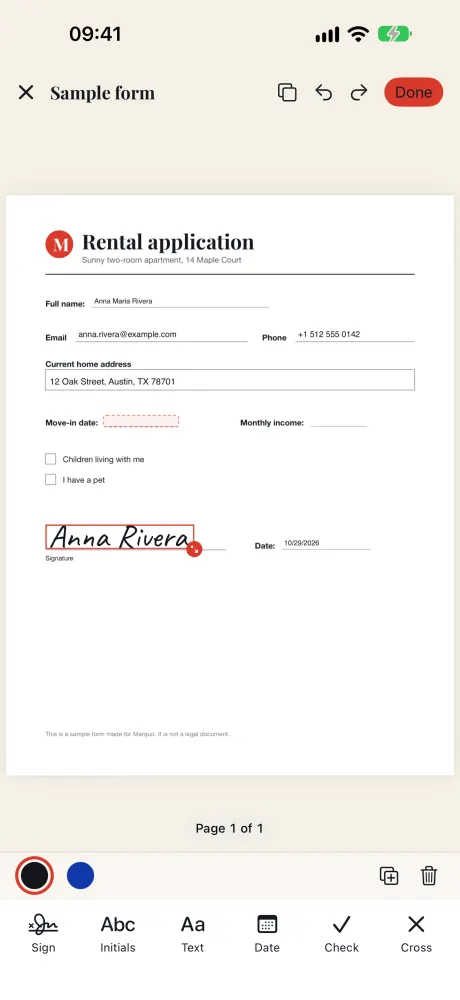
Tap where the signature goes, then add initials, the date or text. Tap Fill my details if the document has blanks for your name and address.
Export and send
Tap Export and share the PDF by email or message, or save it to Files.
iPhone, iOS 26 or later. 1 signed document a day free. Pro from $4.99 a week.
What can look different
Conversion redraws the document, so check it with your own eyes. Text set in Calibri or Cambria is drawn with Carlito and Caladea, open fonts made to match their sizes. Complex layouts (text boxes, floating images, unusual fonts) are the most likely to shift. If a page looks wrong, ask the sender for a PDF instead.
| File | Opens in Marquo | Result | Notes |
|---|---|---|---|
| .docx | Yes | Signed PDF | Most common Word format |
| .doc | Yes | Signed PDF | Older Word format |
| .rtf | Yes | Signed PDF | Plain formatting |
Source: Marquo 1.0 engine (Word, DOC and RTF to PDF) and its automated conversion tests, October 2026.
Why the result is a PDF
A signed document should not change after you sign it. A Word file can be edited by anyone who opens it, and it looks different from one device to another. A PDF keeps the page as you saw it, and Marquo locks form fields at export by default. With Pro you can also require a password to open the file.
If the sender needs a Word file back
Some people want their .docx returned with your signature inside so they can keep editing it. Marquo cannot do that: it never writes Word files. Ask whether a signed PDF is acceptable. Most requests to sign and return a document are fine with a PDF, but only the sender can confirm it.
On a computer instead
On a computer, the usual way is to save a picture of your signature (a photo or a scan on white paper), insert it as an image at the signature line in your word processor, and save or export the document. That keeps the file editable. On iPhone without a computer, the Marquo steps above give you a PDF.
Questions
Can I sign a Word document on my iPhone?
Yes. Open the .docx in Marquo through Share, sign it and send the resulting PDF.
Will the Word file stay editable?
No. Marquo produces a PDF. If you need an editable Word file, sign on a computer.
Does the conversion upload my file?
No. Marquo converts the document on the iPhone.
Can I open .doc and RTF files?
Yes. Both are converted to PDF for signing, like .docx.
More guides
Sign the next document on your phone
Open the file from Mail, Messages or Files, add your signature and send back a flattened PDF. Everything stays on your iPhone.
iPhone, iOS 26 or later. 1 signed document a day free. Pro from $4.99 a week.