 Marquo
How to sign a PDF on iPhone
Open the PDF in Files or Mail, tap the Markup button, choose Add Signature and drag your signature onto the line. That is free and already on your phone. If the document also needs your name, address and date, came as a Word file or a photo, or you want the answers locked, share it to Marquo or use our free Sign a PDF online tool.
iPhone, iOS 26 or later. 1 signed document a day free. Pro from $4.99 a week.
Short answer
There are three practical ways to put a signature on a PDF from an iPhone, and none of them needs a printer. The tools built into iOS cost nothing and handle a single signature on a clean PDF well. Marquo is our app for the same job when the paperwork has more to it: blanks for your details, a Word attachment, a scan, several signatures. The third option is a page on this site that signs a PDF inside the browser, on any phone or computer, without installing anything.
Whichever you pick, the signed result is a new PDF that you send back the same way the original arrived: by email, in a message, or through a shared folder. Before you send it, open that new file once and look at the page where you signed. It takes ten seconds and catches most mistakes.
Sign with the tools built into iOS
These steps follow Apple's guide Fill out forms, sign documents, and create signatures on iPhone, which we checked on October 31, 2026. The guide now opens on its iOS 27 version; the iOS 26 version has the same buttons in a slightly different order. Icons are described in words because Apple shows them as pictures.
Open the PDF on your iPhone
Tap the attachment in Mail or the file in Files. If iOS asks, open the document in the Files app and tap Save, so you are working on your own copy.
Turn on Markup
Tap the Markup button, the pen tip icon. A toolbar appears at the bottom of the screen.
Add your signature
Tap the add button in the toolbar, then Add Signature. Sign with your finger and tap Done, or pick a signature you saved earlier.
Put it on the line
Drag the signature onto the signature line. Drag any blue dot on its outline to make it bigger or smaller.
Add a date or your name if asked
Tap the add button again and choose Add Text Form Box, drag the box where the date goes and type.
Finish and share
Tap Done, then Export, Print or the share button. Mail, Messages and AirDrop are all in the share sheet.
Saved signatures and labels
Apple's guide says iPhone keeps a signature you create and offers it the next time you tap Add Signature. You can keep more than one, for example a full signature and your initials, and label each one as given name, nickname or initials. To remove one, tap Add Signature, then Add or Remove Signature. If the signing area feels cramped, the guide suggests turning the iPhone sideways for more room. The iOS 26 version also mentions changing the line weight and color of a placed signature from the Markup toolbar.
What the built-in way does well
It is free, there is nothing to install and no account to make, and the signature stays on your phone. For a one-page agreement or a delivery note that only needs a signature, it is often all you need, and we would rather you use it than install an app you will open once. The same guide also covers filling form fields and AutoFill from your contact card, which we describe in How to fill out a PDF form on iPhone.
What we have not checked
We have not yet run the built-in tools and Marquo side by side on the same set of documents, so we do not claim that the built-in way fails at anything. Where Apple's guide is silent, our comparison table below says so instead of guessing. If your file is a Word document, a photo of paper or a scan with lines but no fields, try the built-in way first and see whether it gives you what you need.
Sign with Marquo
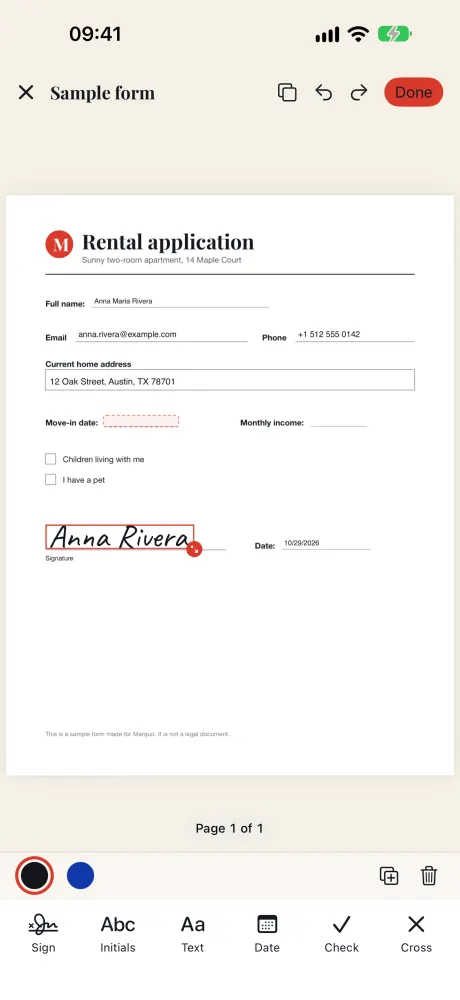
Marquo opens the file, lets you place a signature, initials, text, a date, a check mark or a cross anywhere on the page, and saves a new PDF. The toolbar at the bottom of the editor has exactly those six buttons: Sign, Initials, Text, Date, Check and Cross.
Open the file in Marquo
In Mail, Messages or Files, tap Share on the attachment and choose Marquo. You can also open Marquo and pick a PDF, a Word file, a photo or a camera scan from there.
Tap Sign and choose a signature
Pick a saved signature or make a new one. A new signature can be drawn, typed in a handwriting font, or taken from a photo of your signature on paper.
Move it onto the line
Drag the signature into place and pull the corner handle to resize it. With it selected you can switch the ink between black and blue, duplicate it or delete it.
Add initials date and details
Use Initials, Date and Text the same way. On a flat form, Fill my details places your saved name, address, phone and email on the blanks Marquo found.
Tap Done and share
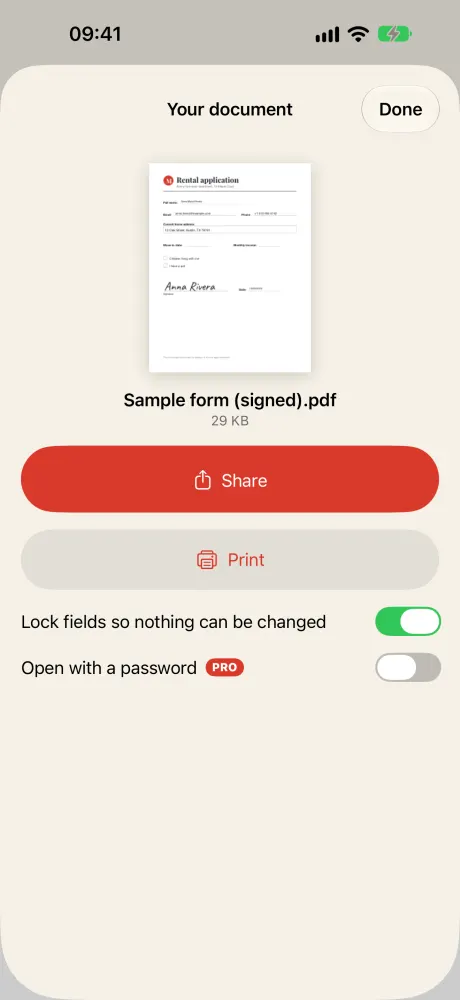
The Your document screen shows the new file, named after the original with (signed) at the end. Share it, print it, or keep Lock fields on so nothing can be changed.
The finished file
Everything you place is drawn into the page of the new PDF. That is why the signature looks the same in Apple's viewer, in a Windows PDF reader or in a browser. Lock fields so nothing can be changed is on by default: if the PDF had form fields, their values become part of the page. Pro adds Open with a password, so the recipient needs a password you give them to open the file. On the sample form, the signed copy came out at 29 KB.
The free daily document
Without Pro you can sign 1 document a day. It counts when you export a real document, and the sample form inside the app never counts. Pro removes the daily limit, keeps several signatures and sets of initials, and adds the password option.
iPhone, iOS 26 or later. 1 signed document a day free. Pro from $4.99 a week.
Sign a PDF in the browser on this site
Our Sign a PDF online page does the core of the job in a browser tab: Safari on iPhone, or any browser on a computer. It needs no account and no app, and the PDF is opened and rebuilt by your browser rather than sent to a server.
Choose the PDF
Tap Choose a PDF. The pages appear one under another, and if the file has form fields you can type into them right on the page.
Add your signature
Tap Signature, draw it with a finger or type your name and pick one of three handwriting fonts, then tap Use this signature and drag it onto the line.
Add the rest
Initials, Text, Date and Check work the same way. Pull a corner to resize anything you placed.
Create and download
Tap Create PDF, then Download PDF. Flatten is on by default, so the marks become part of the page.
We ran it on October 31, 2026 in Chromium on a Mac with the official IRS Form W-9 (141 KB, 6 pages). We drew a signature, typed initials and placed a date, a line of text and a check mark: five marks. Create PDF took under a second and produced signed.pdf, 167 KB. The original file had 23 form fields; the flattened result had none, so the values cannot be edited later. Two things to know: the signature is forgotten when you close the tab, and a PDF protected with a password will not open until the password is removed.
Which way to choose
| Built into iOS | Marquo 1.0 | Sign a PDF online | |
|---|---|---|---|
| Cost | Free | 1 signed document a day free; Pro from $4.99 a week | Free, no limit |
| Install or account | None | App from the App Store, no account | None, works in a browser |
| Signature types | Drawn with a finger | Drawn, typed in a handwriting font, or a photo of your signature | Drawn or typed in a handwriting font |
| Saved signatures | Yes, several, with labels | One signature and one set of initials; several with Pro; optional Face ID lock | No, gone when the tab closes |
| Initials, text, date | Text box; initials as a saved signature | Separate Initials, Text and Date tools | Initials, Text, Date and Check |
| Word files and photos | Not covered in Apple's guide | .docx, .doc, .rtf and photos turned into a PDF | PDF only |
| Blanks on flat forms found for you | Not covered in Apple's guide | Yes, labels read in English, Spanish and Russian | No |
| Answers locked in the result | Not covered in Apple's guide | Lock fields, on by default | Flatten, on by default |
| Where the file goes | Wherever the file already is | Stays on the phone | Stays in your browser |
Sources: Apple Support guide checked October 31, 2026; Marquo 1.0 features and tests; our run of the browser tool on October 31, 2026.
Use the built-in tools when the PDF needs one signature and nothing else, and you sign rarely. Use the browser tool when you are on a computer, on a borrowed phone, or want a flattened PDF without installing an app. Use Marquo when you sign often, when the form wants your details as well, when the file is a Word document or a photo of paper, or when you want your signatures kept ready on the phone.
Check the file before you send it
| Check | Why it matters | How |
|---|---|---|
| You are sending the new file | The original has no signature | In Marquo the name ends with (signed); in the browser tool the file is signed.pdf |
| The signature sits on the right line | Pages can look alike, and a mark can land one page off | Open the file in Files and scroll to the signature page |
| All pages are there | A missing page means a second round of emails | Compare the page count with the original |
| Dates and initials are complete | Leases often want initials on every page | Scroll every page once |
| The size is reasonable for email | Very large attachments can bounce | The size shows in Files and on the Marquo export screen |
Our checklist, based on the export screens of Marquo 1.0 and the browser tool, October 2026.
To send it, use the share button and pick Mail or Messages, or attach the file from Files when you reply. Replying to the original email keeps the thread together, so the sender sees which document you are returning.
Common problems and fixes
- The signature does not show in another app. You may have sent the original. Open the exported file instead. Marquo and the browser tool draw the signature into the page, so any PDF viewer shows it.
- The PDF asks for a password. Ask the sender for the password or a copy without one before you sign. The browser tool stops with a message when a file is protected.
- The document is a photo or a screenshot. Open the picture in Marquo directly; it becomes a PDF page you can sign and fill. See Sign a paper document on iPhone.
- The signature is too big for the line. Pull the corner handle before you export. After export the page is fixed, so sign the original again if you need to change it.
- A large PDF is slow in the browser. On a phone the browser can run out of memory with very big files; the tool warns you. Try a computer, or the app.
Contracts leases and receipts
People sign lease and rental agreements, consent and permission slips, school and work forms, quotes and delivery receipts this way, and a bill of sale or a short contract is no different. Marquo does not supply templates for any of these; it signs the document you already have. Leases often ask for initials on every page: place them once, then add them on each page from the Initials tool, which offers the saved set every time. If the form also asks for your details, read How to fill out a PDF form on iPhone; for a Word attachment, see How to sign a Word document on iPhone; to make or improve the signature itself, see Create your signature on iPhone.
Is this signature valid
The signature in the file is an image of your handwriting placed on the page. Whether that is enough depends on the person or organization receiving it and on the rules that apply to the document; this page does not decide that for you. Electronic signature on iPhone explained covers how this differs from a certificate-based digital signature.
Questions
How do I sign a PDF on my iPhone for free?
Use the Markup tools built into iOS, or our Sign a PDF online page in Safari. Marquo signs 1 document a day for free, and its sample form is always free.
How do I sign a document on my iPhone without printing it?
Open it, add your signature with Markup, Marquo or the browser tool, and send the new PDF back by email or message. No step needs paper.
Where is the signature button in Files?
Open the PDF, tap the Markup button (the pen tip), then the add button in the toolbar, and choose Add Signature.
Can I add a signature from a photo?
In Marquo, create a new signature, choose Photo, then Take photo or Choose photo. The white paper is removed and only the ink is kept.
Can I sign the same PDF in more than one place?
Yes. Place as many signatures, initials and dates as the pages need. A second person can sign the exported PDF on their own phone.
Does signing upload my document?
Not with Marquo, which works on the phone without an account, and not with our browser tool, which builds the PDF in your browser.
More guides
- Fill out a PDF formForms with fields and flat scans, AutoFill, and the W-9 test.
- Create a signatureDraw, type or photograph your signature and initials.
- Sign a Word documentOpen a .docx, check the layout, sign and send a PDF.
- Sign a paper documentCapture a paper form with the camera, fill it, sign it, send a PDF.
- Electronic signatureImage of a signature versus a certificate-based digital signature.
- Official formsOfficial PDFs with agency links and which ones we tested.
Sign the next document on your phone
Open the file from Mail, Messages or Files, add your signature and send back a flattened PDF. Everything stays on your iPhone.
iPhone, iOS 26 or later. 1 signed document a day free. Pro from $4.99 a week.