 Marquo
Create your signature on iPhone
iPhone can save a signature you draw with your finger in Markup. Marquo adds two more ways to make one: type your name in a cursive handwriting font, or photograph the signature you already wrote on paper and keep only the ink. For a PNG file in a browser, use our free signature generator.
iPhone, iOS 26 or later. 1 signed document a day free. Pro from $4.99 a week.
Short answer
A signature on a phone is a small picture of your handwriting that is placed on documents. You make it once and reuse it. How you make it changes how it looks: a finger on glass gives a smoother, rounder line than a pen; a handwriting font gives the same neat result every time; a photo of your pen signature looks most like the one on your bank card and passport.
Pick by what you have at hand. No paper nearby and you need it now: draw it. You want something tidy and repeatable: type it. Your pen signature already looks the way you want: photograph it. Initials are made the same way and kept separately.
Create a signature with the tools built into iOS
From the section Add a signature in Apple's guide Fill out forms, sign documents, and create signatures on iPhone, checked October 31, 2026. It works in apps that support Markup; Apple names Notes and Photos as examples, and the same Add Signature button appears when you mark up a PDF in Files.
Open Markup
Open a document or image in a supported app and tap the Markup button or Markup.
Choose Add Signature
In the Markup toolbar tap the add button, then Add Signature. If you already have one, tap Add or Remove Signature, then the add button.
Sign with your finger
Sign on the screen. Tap Clear to start over. Apple suggests turning the iPhone sideways for more room.
Label it
Tap the label control next to New Signature and pick a label such as given name, nickname or initials.
Save and place it
Tap the button to save. iPhone keeps the signature for the next time you tap Add Signature.
This gives you as many drawn signatures as you like, free, with no app. Apple's guide describes drawing only; it does not describe typing a signature in a font or making one from a photo.
Create a signature in Marquo
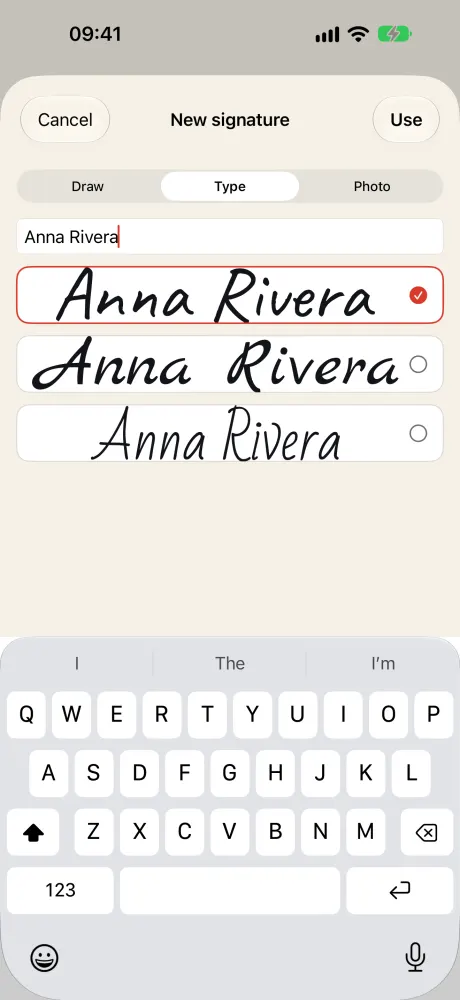
In Marquo the signature screen is called New signature and has three tabs at the top: Draw, Type and Photo. You reach it from the Sign tool in any document, or from Initials for your initials.
Open a document and tap Sign
Open any PDF, Word file or photo in Marquo, or the free sample form, and tap Sign in the toolbar. Choose to add a new signature.
Pick Draw Type or Photo
Draw with a finger or a stylus above the line, type your name and choose one of three fonts, or photograph your signature on white paper.
Tap Use
The signature is saved for next time and placed on the page.
Fit it to the line
Drag it onto the line, pull the corner to resize it, and switch the ink between black and blue if you like.
| Method | Good for | What you need | Result |
|---|---|---|---|
| Draw | A signature right now | A finger or a stylus | Your strokes, trimmed to their edges |
| Type | A neat signature that looks the same every time | Your name | Your name in Caveat, Marck Script or Bad Script |
| Photo | Keeping your real pen signature | White paper, a dark pen, even light | Your ink with the paper removed |
Source: Marquo 1.0 signature screen and engine tests, October 2026.
iPhone, iOS 26 or later. 1 signed document a day free. Pro from $4.99 a week.
Draw it
The drawing pad shows a thin line and the hint Sign above the line. Sign as you would on paper, at your natural size: the signature is scaled when you place it on the document. Clear wipes the pad. When you tap Use, Marquo trims the empty space around your strokes, so the signature box on the page hugs the ink and is easy to line up.
A simple stylus can help if your finger signature looks nothing like your pen one. If the drawing still feels unlike you, the Photo tab keeps your real pen signature instead.
Type it in a cursive font
Switch to Type and enter your name. Marquo shows it at once in all three fonts, each in its own row, and you tap the one you like. Caveat looks like quick everyday handwriting, Marck Script is a connected script with long strokes, and Bad Script is lighter and slanted. All three include Spanish accents and Cyrillic, so José Núñez or Иван Петров come out right. This is the cursive signature generator people search for, built into the app and working without a connection.
Some people and organizations accept a typed name in a handwriting font and others expect a drawn signature. If you are not sure, ask whoever asked you to sign, or use one of the other two methods.
Photograph your signature on paper
Switch to Photo and tap Take photo, or Choose photo for a picture you already have. The screen reminds you: photograph your signature on white paper in good light, and the paper turns transparent.
What Marquo does with the photo
It does not use a neural network. It measures how bright the paper is across the whole picture, treats anything clearly darker than the paper as ink, and makes the rest transparent. Then it crops the image to the ink with a small margin. The ink is kept as dark strokes on a transparent background, so it sits on a line without a white box around it. In our tests this worked on paper with uneven light and a gray tint. A blank sheet gives no signature at all, only a short message asking for dark ink on white paper.
Tips for a clean cutout
- Plain white printer paper. Ruled or squared paper can leave lines that are dark enough to count as ink.
- A dark pen, black or blue. Pencil can be too light to separate from the paper.
- Daylight or an even lamp, with the phone's shadow off the sheet.
- Fill most of the frame with the signature, and keep the paper's edge and the table out of it.
Add your initials
Initials are stored apart from the full signature and use the same three tabs; the pad says Draw your initials. In a document tap Initials in the toolbar instead of Sign. Leases and some contracts ask for initials at the bottom of every page: the Initials tool offers your saved set each time, so you place them page by page in a few taps.
Where your signature is stored
Signatures, initials and My details are kept on the iPhone. Marquo has no account, and nothing is uploaded. On the free plan Marquo keeps one saved signature and one set of initials, and making a new one replaces the old one. Pro keeps as many as you like, for example a full signature and a short one. Delete any of them from the list of saved signatures.
You can also lock them. In Settings, switch on Lock signatures and details with Face ID. It is off by default. When it is on, Marquo asks for Face ID or your passcode before it shows your saved signatures or My details, stays unlocked for 2 minutes, and locks again as soon as the app goes to the background.
Make a signature image in the browser
If you need the signature as an image file, for a Word document on a computer or an online form that asks for an upload, our free signature generator makes one in the browser.
Draw or type
Sign in the box with a finger, mouse or stylus, or switch to Type and enter your name.
Pick font and ink
Choose Caveat, Marck Script or Bad Script, and black or blue ink.
Download PNG
Tap Download PNG, or Put it on a PDF to place it on a document on the same site.
We tried it on October 31, 2026 in Chromium on a Mac: the typed name Jane Sample downloaded as signature.png, 755 by 160 pixels with a transparent background, 30.8 KB. The page then said the PNG is not saved anywhere else, and that is true: the signature exists only in the open tab. To put it on a PDF straight away, use Sign a PDF online.
Web signature generators in general run in a browser. Some draw the image on your device, others send it to a server; the site's privacy policy is where to check. Ours makes the PNG in your browser. In Marquo the signature never leaves the phone and goes onto the document directly, with no image file to manage.
Which method to pick
| Built into iOS | Marquo 1.0 | Signature generator | |
|---|---|---|---|
| Draw with a finger | Yes | Yes, finger or stylus | Yes, finger, mouse or stylus |
| Type in a handwriting font | Not covered in Apple's guide | Yes, 3 fonts | Yes, the same 3 fonts |
| From a photo of paper | Not covered in Apple's guide | Yes, paper removed | No |
| Initials | As a labeled signature | Separate Initials tool | Drawn separately on a PDF |
| Saved for next time | Yes, several | 1 signature and 1 set of initials free; more with Pro | No |
| Lock | Not covered in Apple's guide | Optional Face ID or passcode | Nothing is kept |
| Output | Placed in the document | Placed in the document, exported as PDF | Transparent PNG or a signed PDF |
Sources: Apple Support guide checked October 31, 2026; Marquo 1.0; our run of the generator on October 31, 2026.
Make it look right on paper
- Size. Resize until the signature sits on the line and does not cover the printed words above or below it.
- Color. Black suits most documents. Blue makes the signed copy easy to tell apart from a black-and-white photocopy.
- One version. Use the same signature on related documents. With Pro you can keep a full signature and a short one side by side.
- Check the export. Open the signed PDF and zoom in on the signature once before you send it.
Is a drawn or typed signature valid
What any of these methods produces is an image of a signature, not a certificate-based digital signature. Whether it is accepted depends on the recipient and the rules for the document. Electronic signature on iPhone explained covers the difference.
Questions
How do I create a handwritten signature on my iPhone?
Draw it with your finger in Markup (Add Signature) or in Marquo, or photograph your pen signature in Marquo with Photo, then Take photo.
How do I make a cursive signature from my name?
Type your name in Marquo's Type tab or in our signature generator, and pick Caveat, Marck Script or Bad Script.
How do I create a digital signature on my iPhone?
If you mean a signature image for documents, use any method on this page. A certificate-based digital signature is something else, and Marquo does not create one. See Electronic signature on iPhone explained.
Can I make a transparent signature PNG?
Yes. The signature generator downloads a PNG with a transparent background. Marquo also removes the paper from a photo, but keeps the result inside the app.
Can I save more than one signature?
Built-in Markup keeps several. Marquo keeps one signature and one set of initials free and several of each with Pro.
How do I delete a saved signature?
In Markup, tap Add Signature, then Add or Remove Signature. In Marquo, delete it from the list of saved signatures.
More guides
- Sign a PDFBuilt-in Markup, Marquo and the browser tool, step by step.
- Fill out a PDF formForms with fields and flat scans, AutoFill, and the W-9 test.
- Sign a Word documentOpen a .docx, check the layout, sign and send a PDF.
- Electronic signatureImage of a signature versus a certificate-based digital signature.
Sign the next document on your phone
Open the file from Mail, Messages or Files, add your signature and send back a flattened PDF. Everything stays on your iPhone.
iPhone, iOS 26 or later. 1 signed document a day free. Pro from $4.99 a week.